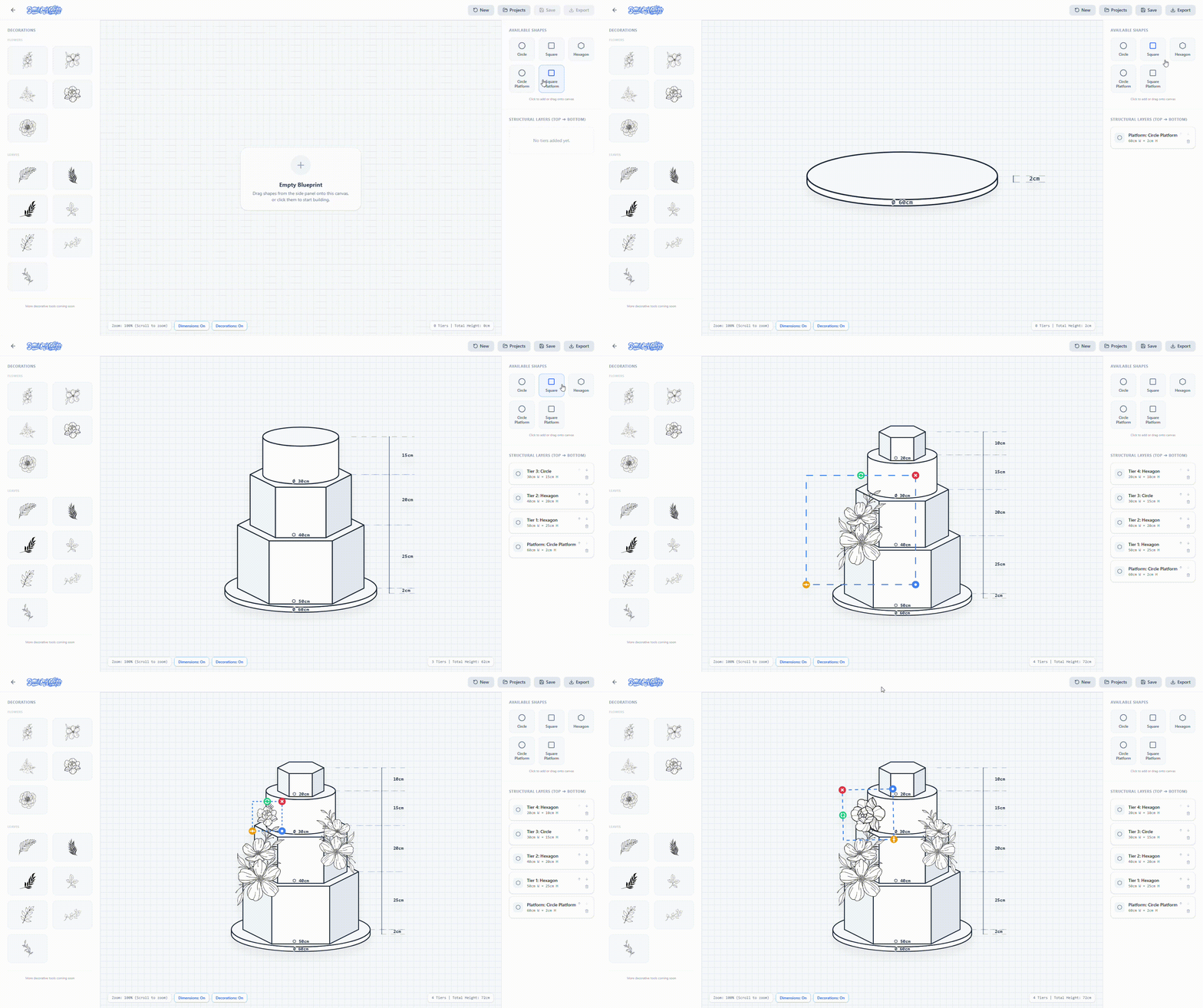
How to Build a Basic Cake
The builder is the heart of BuildMyCakes. Here's how to create your first design from scratch:
- Open the Builder — Navigate to the Builder page from the top menu. You'll see a canvas area in the middle, a tier panel on the right, and a decorations panel on the left.
- Choose a shape — Click on the tier to open its settings. You can choose between Circle, Square, and Hexagon shapes. Platform variants are also available if you need a separator between tiers.
- Set the size — Adjust the width and height using the sliders or input fields. Width is measured in inches and represents the diameter (for circles) or the side length (for squares and hexagons).
- Choose a cake type — Select the cake type (Sponge, Chocolate, Pound, Cheesecake, or Styrofoam dummy) for each tier. This affects the estimated weight shown in the sidebar.
- Add more tiers — Repeat the process to stack multiple tiers. Tiers are displayed top to bottom in the layer panel on the right. Drag them to reorder.
- Review the weight summary — The bottom of the right sidebar shows the total estimated weight in kg and lbs, plus a breakdown per tier. This helps you plan transport and structural support.
How to Add Decorations
Decorations let you visually plan flowers, leaves, and other elements on your cake design:
- Add a decoration — Click any icon in the library to place it on the canvas.
- Position it — Click and drag the decoration on the canvas to move it to the exact position you want on the cake.
- Resize and rotate — Select the decoration to reveal its handles. Drag the corner handle to resize, use the rotation handle to angle it, use the "Bring to front" button to bring the decoration on the first layer of the image, and the flip button to flip the decoration.
- Layer multiple decorations — Add as many decorations as you need and export when ready.
How to Save and Export
Once your design is ready, you can save it to your account or export it as an image or PDF:
- Save your project — Click Save Project in the toolbar. Give your design a name and it will be stored in your account. You can return to it any time from the builder.
- Export as PNG or PDF — Click the Export button and choose your format. PNG gives you a high-quality image; PDF is better for printing or sharing with clients.
- Free tier exports — If you're on the free plan, an ad will play for 30 seconds before your download begins. This supports the platform and keeps it free to use.
- Pro & Sprint exports — Subscribers get immediate, watermark-free downloads with no wait time. Sprint Pass gives you 24-hour unlimited access; Pro is a monthly subscription for regular users.
Subscription Plans Explained
BuildMyCakes offers three tiers of access:
- Free — Full access to the builder, unlimited designs, and exports with a short ad and watermark. Great for occasional use.
- Sprint Pass — A one-time payment for 24 hours of unlimited, watermark-free exports. Ideal if you have a big batch of designs to get through.
- Pro — Monthly subscription for professionals who need clean exports every day. Includes priority support and all future features as they ship.
You can upgrade, downgrade, or cancel your subscription at any time from the Subscription page in your account.